




Install Playbook2go
Register, download Playbook2go and get started step by step.
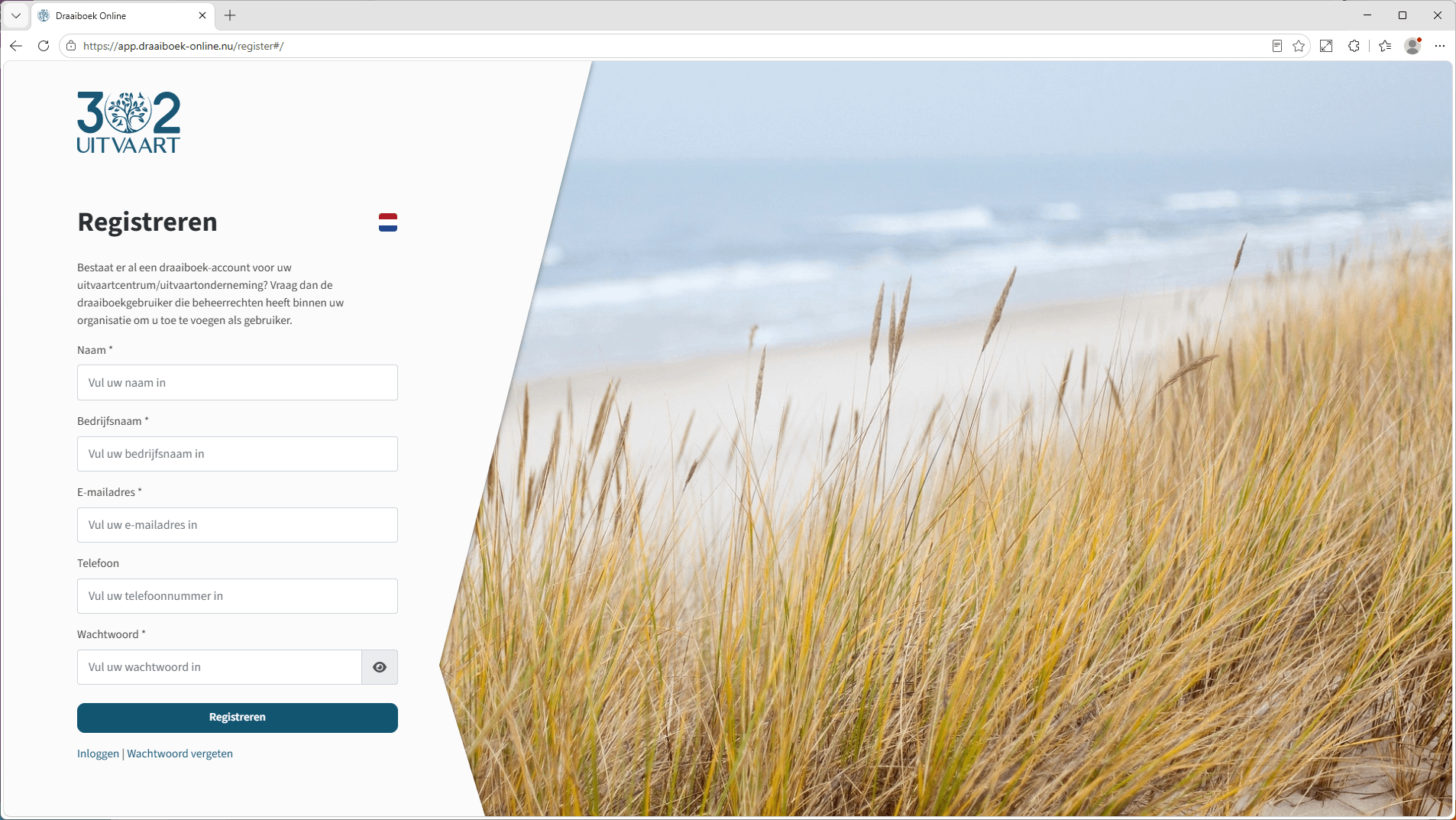
Register and download Playbook2go
Already using Playbook Online? Skip this step and continue straight to the guide below.
1. Go to the website
Open app.302funeral.com/register in your browser.
2. Register
Enter your details to create an account and register.
3. Download the application
After registering, choose your operating system below and download Playbook2go straight away.
The step-by-step guide
Registered and downloaded the app? Below you install Playbook2go and we take you through the application step by step.
Install and start
Follow the installation instructions. Once installed, the application starts automatically.
First start and sign in
When you start Playbook2go for the first time, you need to sign in with the account you registered.
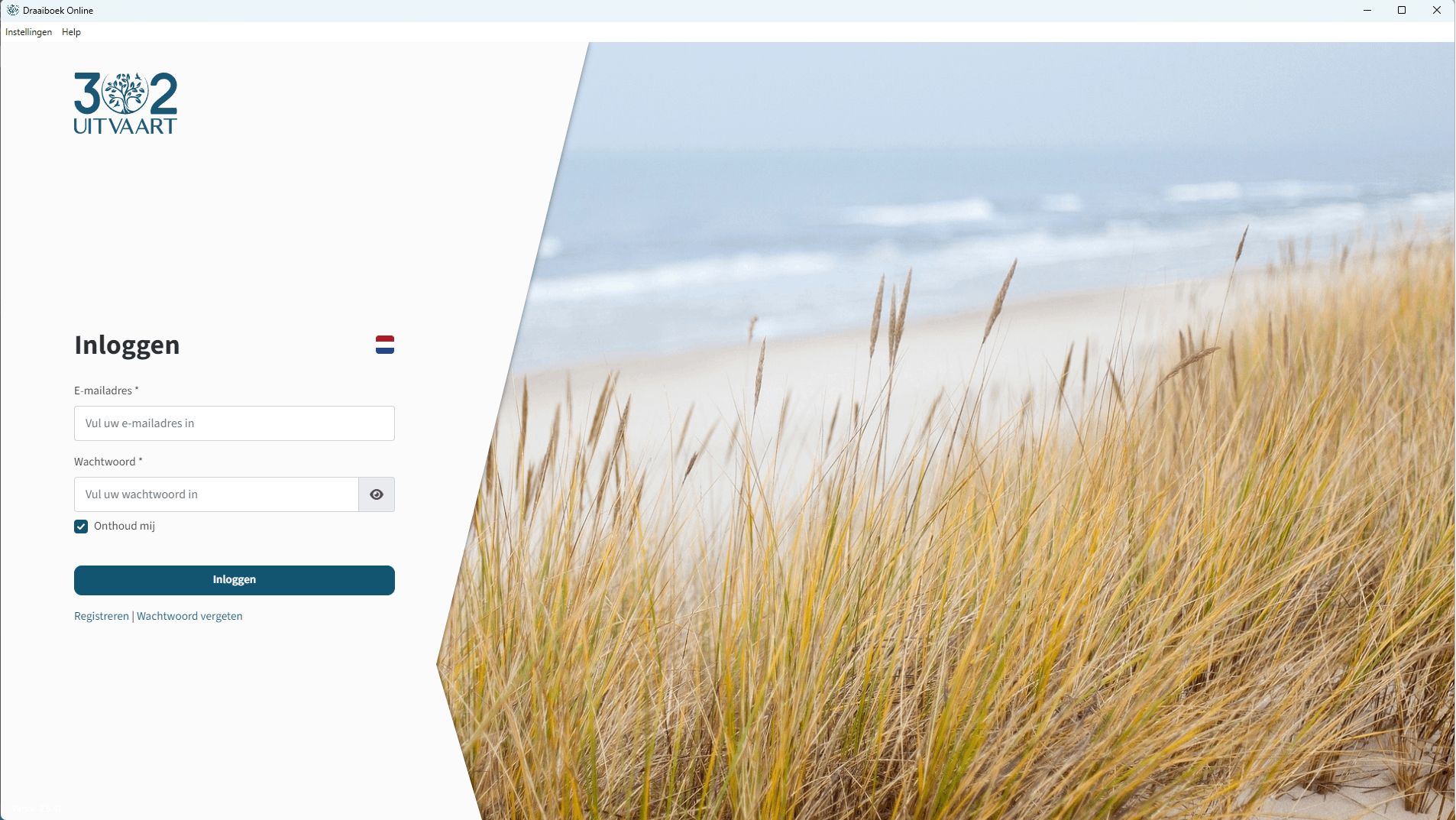
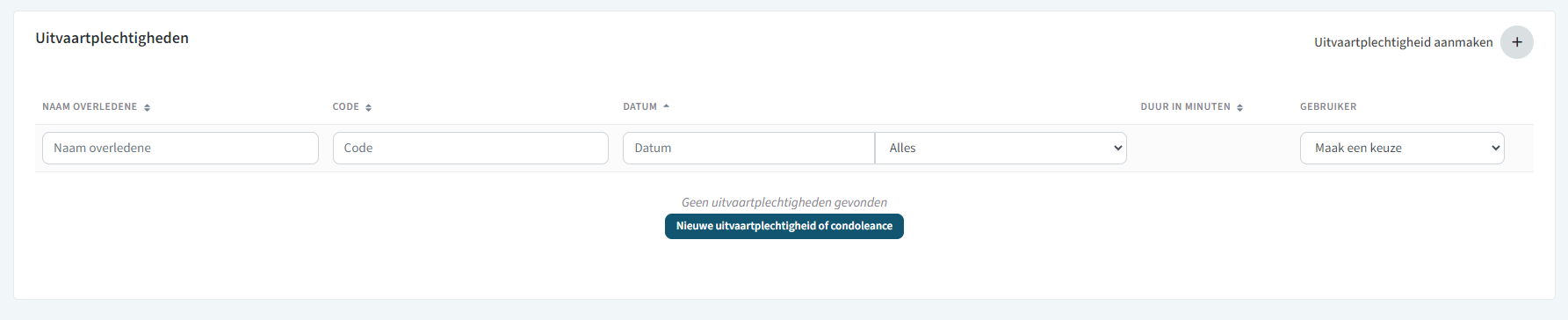
Overview of ceremonies
After signing in, you arrive at the overview of ceremonies.
In this overview you can create a new funeral ceremony or condolence using the blue "New funeral ceremony or condolence" button, or via the button in the top right "Create funeral ceremony +".
Design and control
Once you have created a funeral ceremony or condolence, it appears in the overview. From here you can design the ceremony yourself and ultimately control it.
.png)
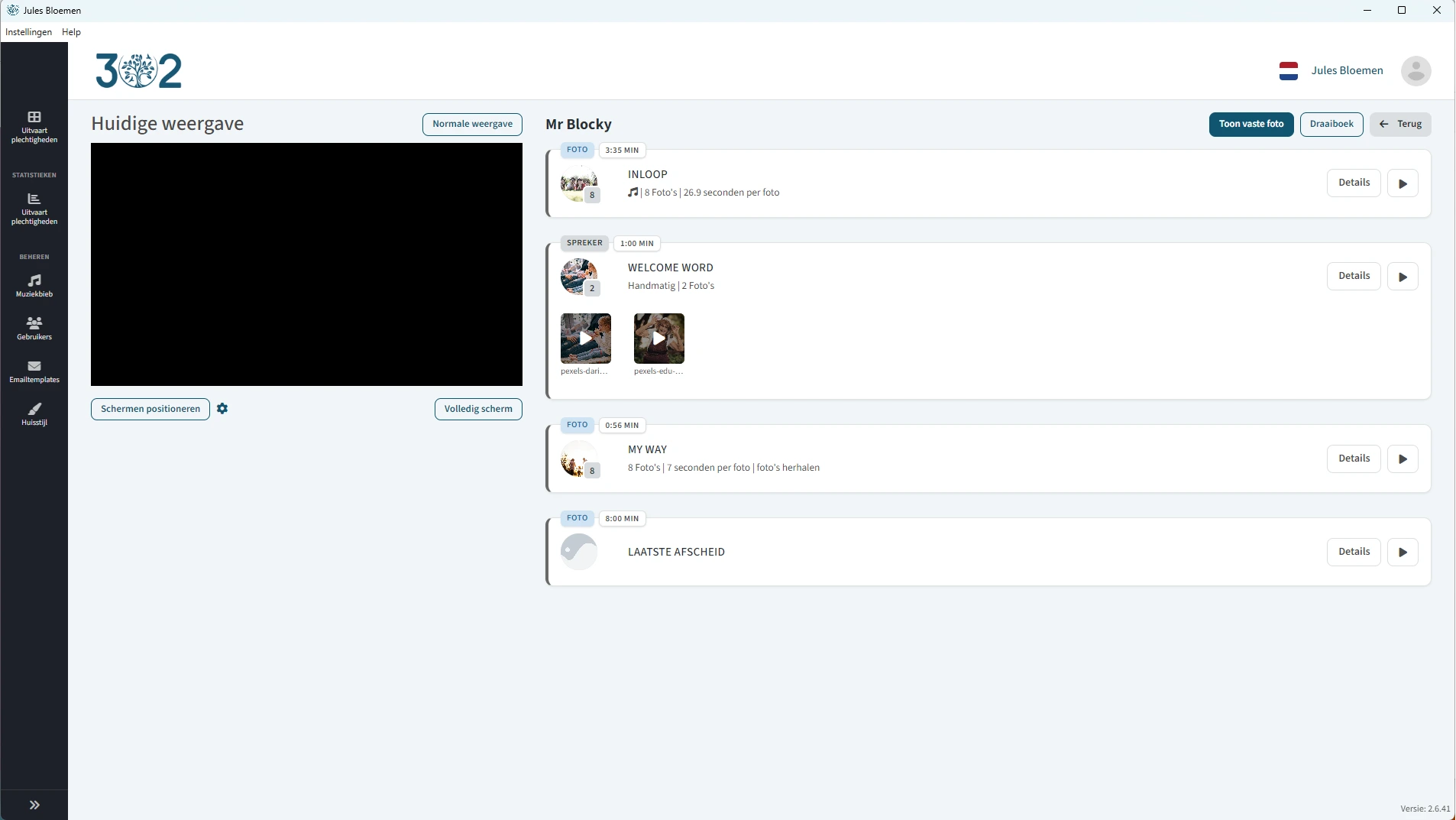
Controlling the ceremony
To control the ceremony, click the "Control" button. You can then operate all the blocks that were set up while designing.
Connect the external screen or projector with the HDMI cable, then click "Position screens" to place the player on the secondary display.
The Playbook2go Player
When you play a block, you see the photos and videos on the Playbook2go Player. This is a separate window of the app and opens as a black screen with the text "Player" in the bottom right (see the photo alongside). The player starts together with the app and is hidden underneath your current Playbook2go window. To move the player to the right screen, click "Position screens" in the controls.